
IC7 Login Overview
IC7 Login lets existing users sign in after downloading and installing the IC7 Android app. Open the installed app to access Verification Code Login or Password Login; both use a +91 mobile number. This IC7 Game Login guide explains sign-in, password recovery and common access problems.
- New users: the screen has a shared Sign Up / Login button; account creation is covered in the IC7 Register guide.
- Password setup: open My Profile → Account & Security → Login Password after signing in.
- Help: Forgot Password, Support and Fix are visible on the login screen.
IC7 Game and App Features
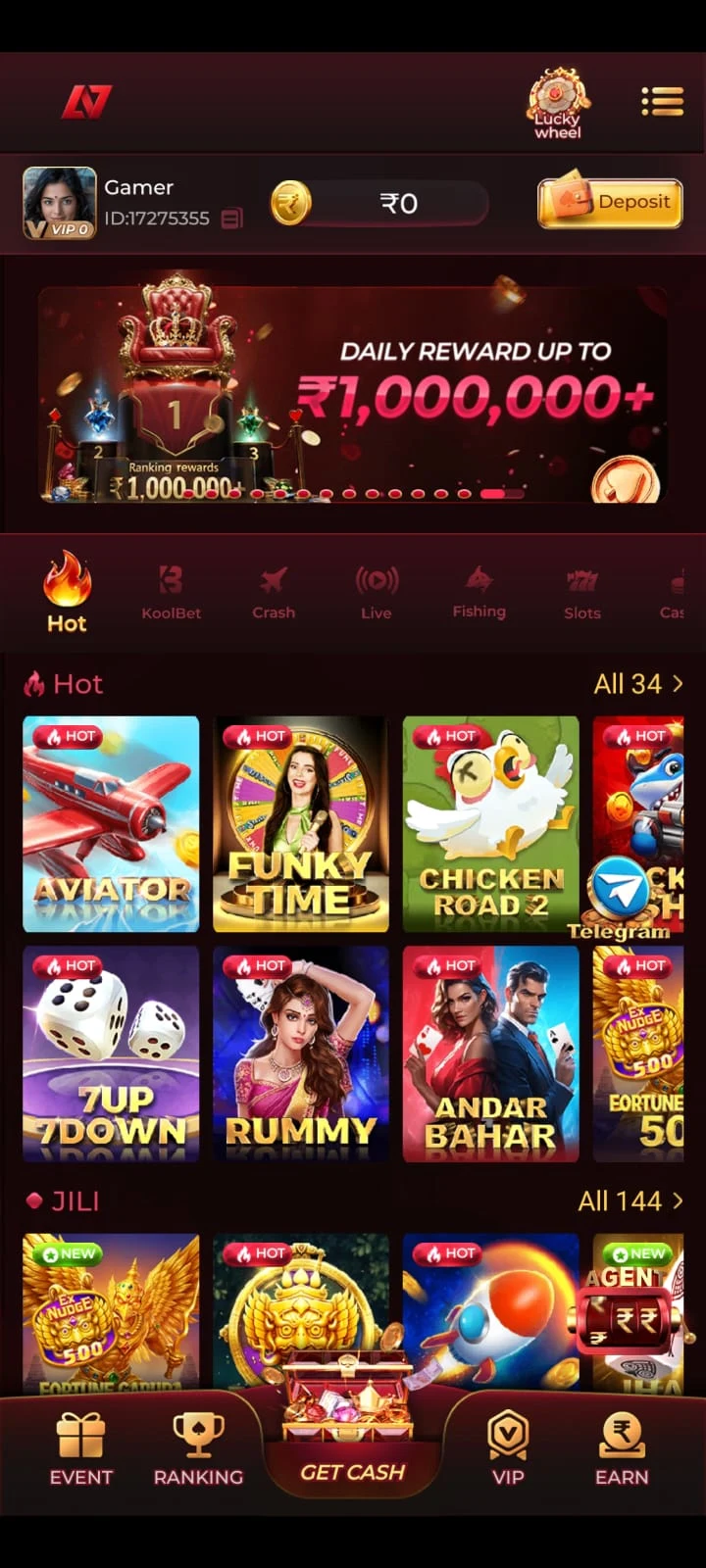
IC7 Game is an Android app with game categories, account security settings and profile tools. For the full game and feature overview, use the linked IC7 App and homepage guides.
After login, My Profile provides Account & Security, Balance Records, Notifications, Live Support, Gifts, Settings and Ticket. The bottom menu includes Ranking, Get Cash, VIP and Earn. See IC7 App for navigation and IC7 Game for individual game information.
IC7 Login Information
Use the same registered mobile number for OTP, password setup and account recovery.
How to Login to IC7 Game After Installation
Complete the IC7 download and installation first. Login is the next step when you open the installed app.
- Download and install IC7 Game on your Android device using the installation guide.
- Open the installed IC7 Game app to reach the login screen.
- Choose Verification Code Login or Password Login at the bottom of the sign-in screen.
- Enter the mobile number associated with your account, using the displayed +91 prefix.
- Provide the verification code or password required by the selected method.
- Tap the red Sign Up / Login button.
- Wait for the application to complete verification and open your account when the information is accepted.
First-time users and returning users see the shared Sign Up / Login wording. The app determines the next step based on the number and account state; tapping that button does not necessarily mean a new account is being created.
IC7 Verification Code Login – Mobile OTP Steps
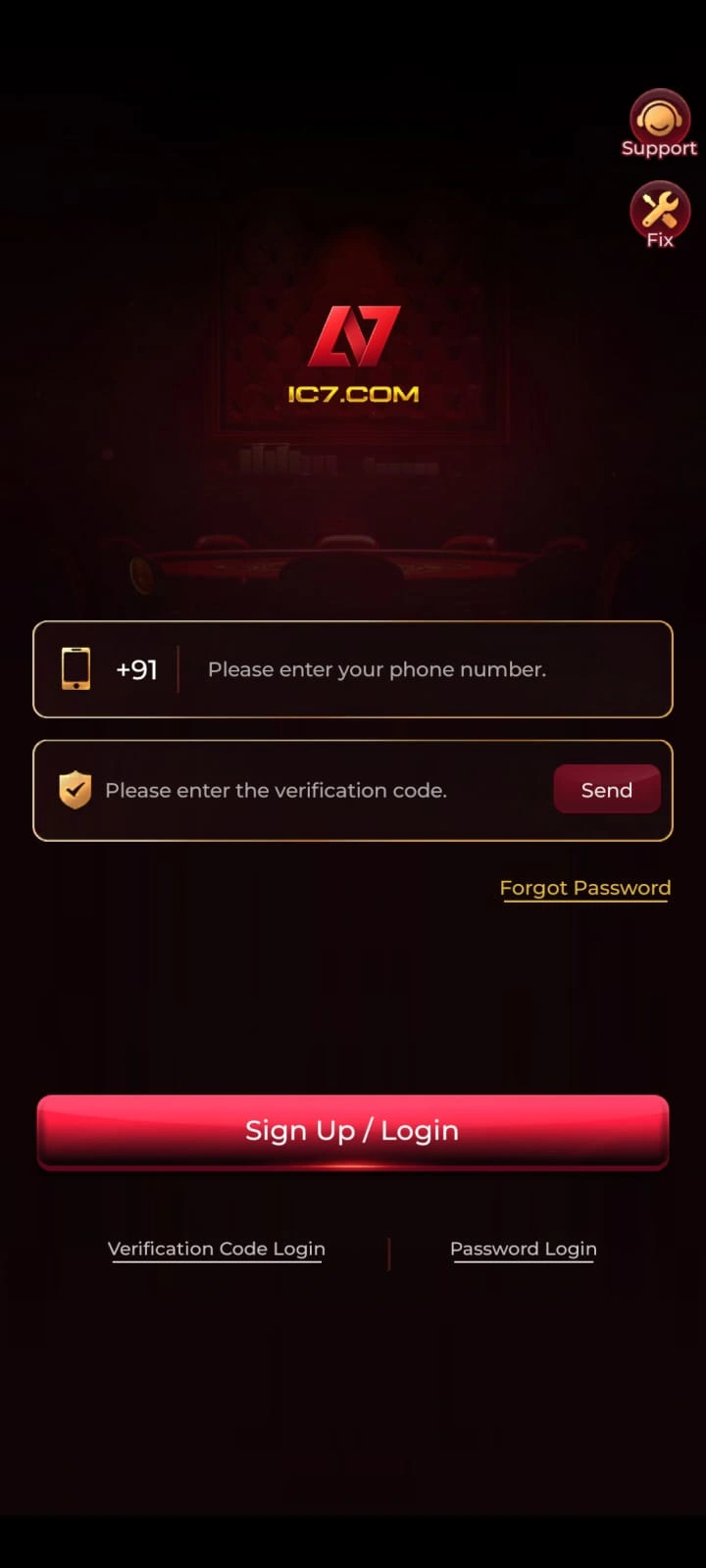
The Verification Code Login tab shows a +91 phone-number field, verification-code field and Send button.
- Choose Verification Code Login on the IC7 sign-in screen.
- Enter your registered phone number in the +91 field.
- Tap Send to request the mobile verification code.
- Check the SMS received on your phone.
- Enter the code in the verification field exactly as received.
- Tap Sign Up / Login and wait for the sign-in result.
Use the code issued for the current request. An account verification code is not the same as a gift or promotional redemption code. Never send an OTP to an unfamiliar person or website.
IC7 Password Login – Sign In with a Password
The Password Login tab shows the registered phone-number field, password field and a visibility icon.
- Open IC7 and tap Password Login.
- Enter the registered phone number under the +91 prefix.
- Enter the password previously saved for the account.
- Review the entries; use the visibility control if needed in a private setting.
- Tap Sign Up / Login and follow any additional on-screen verification.
If you have never set a password, sign in using Verification Code Login first and configure your password in Account & Security. If your existing password is no longer known, use Forgot Password.
How to Set IC7 Login Password
Open My Profile → Account & Security → Login Password.
- Sign in to IC7 with the verification-code method.
- Open My Profile.
- Select Account & Security.
- Tap Login Password.
- Enter your account's phone number in the +91 field.
- Tap Send and enter the received verification code.
- Choose a new password containing 8–32 characters.
- Enter the same password in the confirmation field.
- Tap Complete and review the app's result.
Make sure the two entries match. Choose a unique password and follow any additional requirements the current app displays. After successful setup, the Password Login tab can be used for later sign-ins.
IC7 Forgot Password – Reset Guide
The Forgot Password link on the login interface leads to the same Set Login Password form.
- Open IC7 and select Password Login.
- Tap Forgot Password.
- On Set Login Password, enter your registered mobile number.
- Tap Send to request a verification code.
- Enter the received code.
- Choose a new password between 8 and 32 characters.
- Re-enter the updated password for confirmation.
- Tap Complete and check the confirmation shown by the app.
- Return to Password Login and try the new password.
This process relies on the account's mobile verification. If you cannot receive the code, use the available Support shortcut instead of disclosing your credentials to third parties.
IC7 Login Screen Features
- Verification Code Login: Mobile number, code input and Send button.
- Password Login: Mobile number, password input and visibility control.
- Sign Up / Login: The main button for submitting the selected login method.
- Forgot Password: Opens the password replacement form with SMS verification.
- Support: A visible account-assistance shortcut at the top right.
- Fix: A separate on-screen shortcut; it appears beside Support on the sign-in screen.
After signing in, the account also includes an Account & Security menu showing bound phone information and the Login Password setting.


IC7 OTP Not Received – Verification Code Solutions
If the verification code does not appear, work through the following checks before repeatedly requesting another code:
- Number: Confirm that the +91 mobile number is correct and belongs to the account.
- SMS reception: Check cellular service and whether the phone can receive messages.
- Delivery delay: Allow time for the current code request to arrive.
- Filtered messages: Review spam or blocked SMS folders if your phone provides them.
- New code: Use the on-screen Send option again when permitted, and enter the code associated with that request.
- Continuing issue: Consult the visible Support option without sharing your OTP.
When contacting IC7 Support about an OTP issue: explain whether the code did not arrive or was rejected, which login method you selected, and any error message shown on the screen. Do not share the verification code, password, payment PIN or full account credentials. Use the Support option displayed inside the app.
IC7 Login Problems and Fixes
- Sign Up / Login Does Not Continue: Check that the required mobile number, password or verification-code fields are complete. If the app stops responding, check connectivity before trying once more.
- Verification Code Is Rejected: Check the digits and ensure the code belongs to the current request and registered number. Request a replacement only when the app permits it.
Password Login Fails
Confirm the mobile number, check the password entry and use the Forgot Password process if you cannot remember the saved password.
Password Cannot Be Saved
Verify that the new password has 8–32 characters, that both entries match and that the mobile verification step was completed.
App Freezes or Closes at Login
Check connectivity and device storage, then reopen the installed app. Use the visible Support shortcut if the problem continues.
Account Access Is Restricted
Follow the app's own message and consult Support where necessary. Do not give control of the account to people promising instant access or bonuses.
IC7 Login Error Messages and What to Check
If IC7 does not accept a sign-in attempt, read the message displayed by the app before retrying. The checks below cover common mobile login situations; the exact wording and options can vary by app version. Do not assume that every message listed here appears in IC7.
Use the most recently requested code, check every digit, and confirm you entered it for the same registered mobile number. Request another code only when the app allows it.
Stop submitting the same credentials repeatedly. Follow any on-screen retry instructions and use the in-app Support shortcut if access remains restricted.
Check whether the app displayed a session or connectivity message. Confirm that your internet connection is stable and restart the app once before another sign-in attempt.
Check that the required mobile-number, code or password fields are filled. If the screen remains unresponsive, reopen the app and review any available update or support information.
Select Password Login, enter the same registered number and the newly saved password. If the app did not confirm the reset, repeat the supported recovery flow rather than guessing passwords.
Close and reopen the app, check the network and available device storage, and note whether the problem occurs before or after entering credentials. Avoid deleting app data before checking account recovery options.
For installation or package-related errors rather than sign-in problems, use the IC7 APK troubleshooting guide. For general app freezing and loading problems, see the IC7 App guide.
How to Recover IC7 Account Access
Account recovery depends on access to the registered mobile number and the options currently shown inside the app. If a normal Forgot Password reset does not work, use the steps below instead of following unofficial recovery links.
- If your registered SIM still works: open Password Login, choose Forgot Password, request a verification code and follow the Set Login Password steps explained above.
- If your old mobile number is no longer accessible: do not register another person's number or assume that a new SIM automatically transfers your account. Open the visible Support option and ask which recovery process is available.
- If codes never arrive: check SMS reception and filtering, then describe the issue to in-app Support without sharing the OTP.
- If you see an account restriction: save the exact on-screen error wording and follow any instructions provided in the app.
- When contacting Support: provide the type of issue, relevant screen, time of attempt and device/Android version if requested. Never send your password, OTP, payment PIN or full bank credentials.
The website does not provide an account recovery form. Use the app's own recovery and Support interfaces for account-specific decisions. Once access is restored, review My Profile → Account & Security and confirm your saved login settings.
IC7 Login Security Tips
IC7 profiles can contain account activity and payment-related information. Keep your sign-in credentials private and use account recovery only through the app's own displayed steps.
- Never share verification codes, login passwords or payment PINs.
- Use a unique password in the permitted 8–32 character range.
- Do not enter account credentials into unrelated gift-code forms or unsolicited links.
- Verify any claimed support contact before sharing non-sensitive account details.
- Do not install modified applications that promise to bypass verification.
- Follow applicable age and local legal requirements, and review Trust & Safety and Responsible Gaming.
- When signing in on a shared or borrowed phone, use the app’s Logout option in My Profile after you finish and avoid saving your password on that device.
IC7 Login Frequently Asked Questions
For app features, visit the IC7 App guide. For installation and account creation, see IC7 APK and IC7 Register.