
What Is IC7 App?
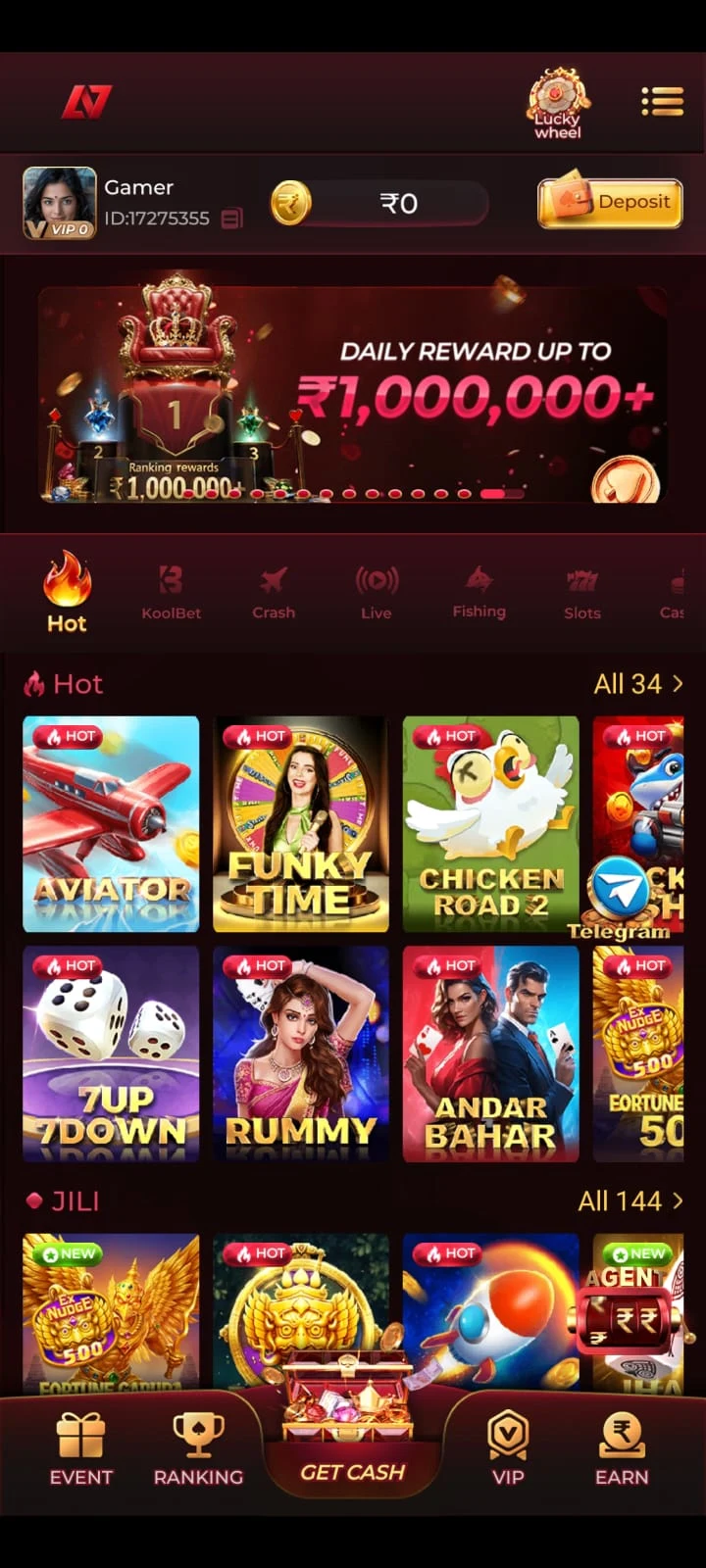
IC7 App is the Android application for IC7 Game. It combines a game lobby, account balance, featured games, reward areas and shortcuts for Menu, Ranking, Get Cash, VIP and Earn. This guide explains what each area does, how to use it and how to fix common app problems.
The IC7 Game App includes Aviator, Mines, Plinko, Dice, Slots, JILI, Rummy, Teen Patti, Fishing and casino-style games. These are separate game types with different controls and rules; the main navigation and account tools remain accessible through the app interface.
To find something quickly, open Menu to browse games, My Profile for account and support options, or Wallet for Deposit and Withdraw. For the Android installer, visit IC7 APK; for browser download steps, see IC7 Game Download.
Download destination: The Download button opens an external referral link. Review the destination, the APK source and any account terms before downloading or registering.
IC7 App Details for Android
IC7 App runs on Android. The Android file details are:
The APK size describes the download file. Android can use additional storage after installation for app data and updates.
Android requirement: IC7 App requires Android 5.0 or later. Device compatibility also depends on the downloaded package and available storage.
IC7 App Features
The main IC7 App features are organized around gameplay, profile management and account tools:
- Game Lobby and Home: Browse featured titles, game categories, account balance and promotions from the main home screen.
- Game Categories: Use Menu to find Crash, JILI, Fishing, Evolution, KoolBet, iNOUT, Casino, Slots, Poker, Sports and ICG collections.
- Quick-Access Navigation: The bottom bar offers Menu, Ranking, Get Cash, VIP and Earn shortcuts; each area displays its own available options.
- My Profile: Find Notifications, Balance Records, Account & Security, Live Support, Gifts, Settings, Ticket and Logout in one place.
- Mobile Account Verification: Use the registered mobile number and an SMS code for first-time access, with login-password settings under Account & Security.
- Wallet and Balance Records: Open Deposit and Withdraw, review Cash Balance and Withdrawable Balance, and check recorded account activity.
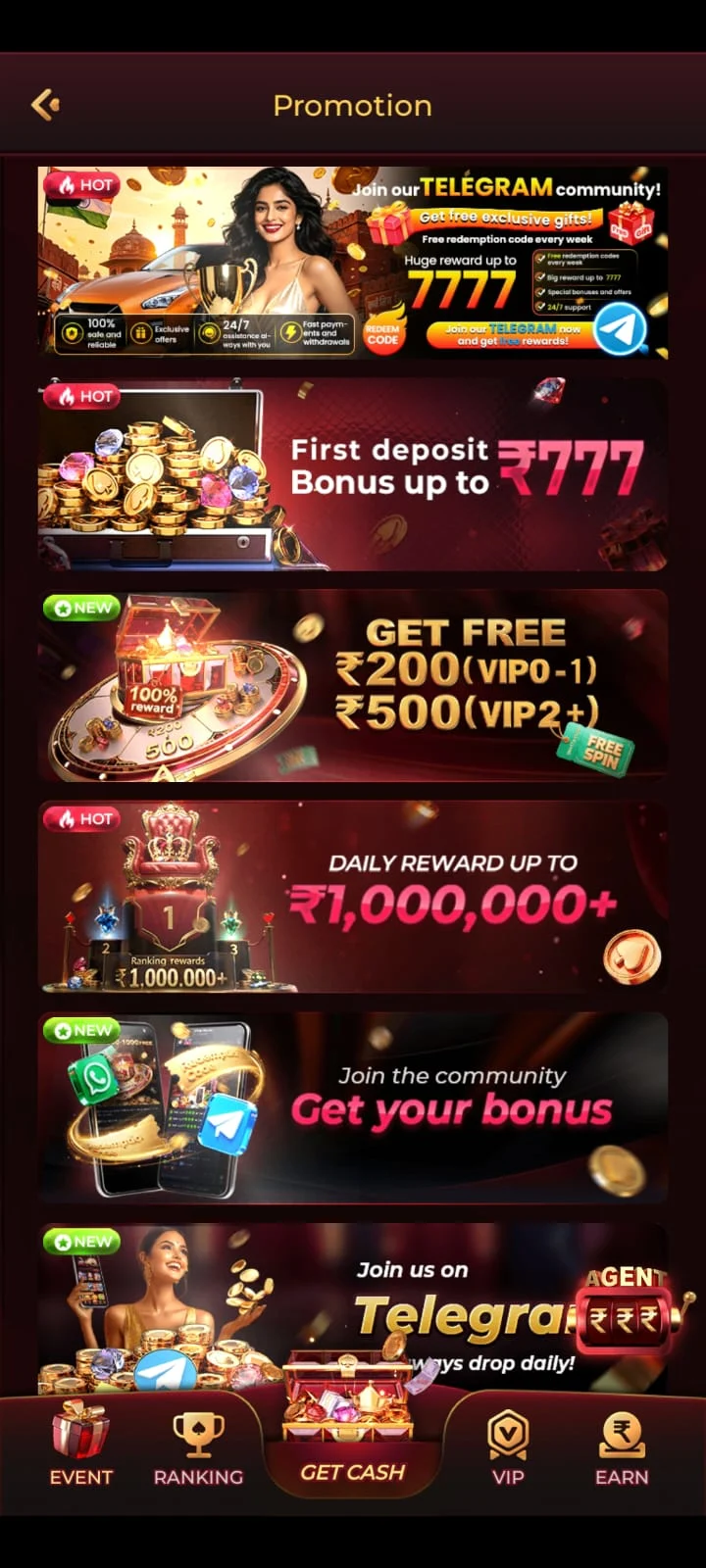
- Bonuses and Rewards: View available First Deposit, 7 Days Daily, Ranking and Referral offers; eligibility and wagering terms vary.
- Help and Support: Use Live Support or submit a Ticket when an app, account or transaction issue needs follow-up.
Use the sections below to locate each feature. Available game titles and promotional terms may change within the app.
How to Navigate IC7 App
The bottom navigation gives access to Menu, Ranking, Get Cash, VIP and Earn. The side menu groups the game's categories, while My Profile contains account controls and support. The labels help you decide where to start:
- Browse a game: Select Menu, then open a category such as Crash, Slots, Fishing or Poker.
- Review rewards: Open Ranking, Earn or the Promotions shortcut and check the conditions shown.
- Manage your account: Open My Profile for Notifications, Account & Security, Settings and Logout.
- Check activity: Use Balance Records for the account's available transaction history.
- Get help: Choose Live Support or Ticket and describe the exact problem.
Find Your Profile and Account Settings
- Open IC7 App and complete any account verification it requests.
- Enter My Profile from the app's account area.
- Tap Account & Security to manage your login password, or Balance Records to review listed transactions.
- For an unresolved problem, open Live Support or Ticket.

Games Available in IC7 App
Crash and Quick-Round Games
- Aviator: Rising multiplier with a cash-out decision before the crash.
- Mines: Select safe tiles while avoiding hidden mines.
- Plinko: Drop a ball through pegs to a result slot.
- Dice: Number- or dice-based outcomes under the selected title's rules.
Other Game Collections
- Slots and providers: Reel-based titles, JILI, PG and Pragmatic Play collections.
- Card games: Rummy, Teen Patti, Poker and Andar Bahar.
- Fishing: Arcade-style games with moving targets.
- Casino and game shows: Roulette, Evolution and Crazy Time.
- Other menus: KoolBet, iNOUT, Sports and ICG.
Each title has its own rules, controls and outcome calculations. Detailed game explanations are available on the IC7 Game homepage.
IC7 App Login and My Profile
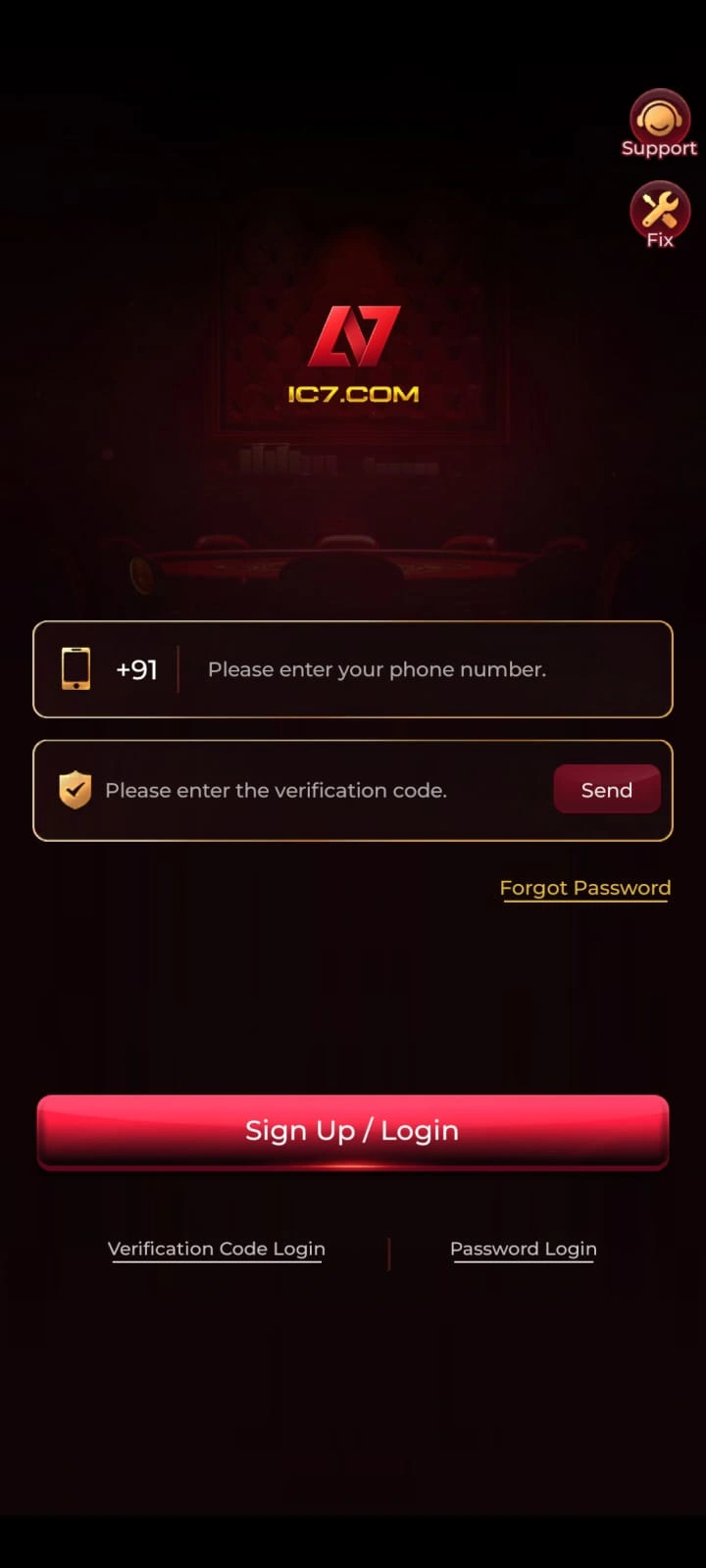
First-time IC7 account access uses a registered mobile number and an SMS verification code. After verifying the number, users can manage their account from My Profile.
First-Time Mobile Verification
- Open IC7 after installation.
- Enter the mobile number used during the download and registration process.
- Tap Send Code.
- Enter the received SMS code.
- Continue to the IC7 Game lobby after verification.
Set Your IC7 Login Password
Open My Profile → Account & Security → Login Password, then:
- Enter your registered mobile number.
- Request and enter the verification code.
- Create a password of 8–32 characters.
- Enter it again under Confirm Password and save.
For later access, use your registered number and saved password, with any additional verification requested by the app. See the IC7 Login guide and IC7 Registration guide for account-specific help.
Balance Records and Live Support
Balance Records help you review recorded account activity. Live Support is available for unresolved account or transaction questions. Never give anyone your SMS code or password.
IC7 App Wallet: Deposit and Withdrawal
IC7 Wallet has separate Deposit and Withdraw tabs. Select the correct one before entering payment or bank details.
Deposit in IC7
- Payment methods: Review the Paytm, PhonePe and QR Code options displayed in your account.
- Before paying: Check the selected payment method, instructions and destination carefully.
- After paying: Review Wallet and Balance Records before attempting another deposit.
Select the displayed amount and payment method, follow the payment instructions, then check Balance Records. See IC7 Deposit for payment steps.
Withdrawal and Bank Details
Open Wallet → Withdraw. If a bank account is not linked, use + Bank or Add Card to enter the account holder's name, account number and 11-character IFSC.
- Bank account: Enter the account holder name, account number and 11-character IFSC.
- Balance: Review Withdrawable Balance separately from Cash Balance.
- Limits and conditions: Check the amount available, daily limit, any fees and wagering requirements shown before requesting a withdrawal.
Check Cash Balance and Withdrawable Balance separately before selecting an amount. See IC7 Withdrawal for bank and withdrawal steps.
IC7 App Bonuses and Rewards
IC7 shows a ₹200–₹500 bonus range and provides Promotions, Gifts, Ranking and Earn areas. Open an offer to view its eligibility and terms.
- First Deposit Bonus: An offer linked to eligible first deposits; read the current wagering and eligibility conditions.
- 7 Days Daily Bonus: Rewards arranged across a seven-day period.
- Ranking Rewards: Promotions displayed through the ranking section.
- Referral Rewards: Offers associated with eligible referrals.
Review each offer's eligibility, wagering terms and account status inside IC7 before using it. The IC7 Bonus guide covers reward-related details.
How to Download, Install and Open IC7 App
- Tap IC7 Game Download and enter your active mobile number on the download screen.
- Check the number, tap Confirm and allow the browser to save IC7.apk.
- Open the completed file from Android Downloads or File Manager.
- Review Android's installer and tap Install if the package and its source are trusted.
- Open IC7, enter the registered number, tap Send Code and complete SMS verification.
After sign-in, use Menu for game collections, My Profile for account settings and Wallet for Deposit or Withdraw. The IC7 APK installation instructions cover installer errors.
IC7 App Latest Version and Updates
Before updating, compare the installed IC7 version with the download offered on the IC7 Latest Version page. The current website APK details are shown in the information table above.
- Check the current installed version in Android App info or the app's available details.
- Obtain the intended IC7 update package.
- Confirm the file finished downloading and that storage is available.
- Open it through the Android installer and review any update prompt.
- After installation, open IC7 and check account access.
A package or signature mismatch can block an update. Do not uninstall a working app or disable Android security just to bypass an error. See IC7 APK troubleshooting for installation-specific help.
Improve IC7 App Performance on Android
When IC7 App feels slow, first identify whether the delay occurs across the entire app or only inside one game. These checks help you narrow down the cause without changing your account data.
- Connection stability: Try a reliable Wi-Fi connection or mobile data. If other apps are also slow, check the network before changing IC7 settings.
- Available storage: Leave room for temporary files and app data; a downloaded 21.77 MB APK may require additional installation and runtime space.
- Phone memory: Close unused, resource-heavy apps if IC7 responds slowly when several apps are open.
- App version: Compare the installed release with the listed version 2.3.0 before attempting an update; availability can change after this guide is published.
- Specific game versus whole app: If the lobby works but one title does not, record the game name and any displayed error for support.
- Transactions: If a balance or payment screen is delayed, review Balance Records before submitting the same request again.
For crashes, blank screens, login errors and failed updates, use the problem-by-problem checks in the next section. Avoid clearing app storage as a routine performance fix because it can remove local data.
IC7 App Not Working? Common Fixes
Use the symptom you actually see on your phone. A download failure, an app crash and an account-verification error have different causes, so the correct next step depends on when the problem begins.
IC7 App Shows a Black or Blank Screen
Check whether the blank screen appears at launch or only after opening a particular game. Test your connection, close and reopen IC7, and restart your phone if the screen stays blank. If just one title is affected, report that title to Live Support. Do not uninstall the app until you know how to recover account access.
IC7 App Freezes or Closes Unexpectedly
Close resource-heavy background apps and reopen IC7. Check free storage and the installed version in Android App info. On devices that offer it, clearing the app's cache may help, but Clear storage/data is different and may remove local settings or require a new sign-in.
IC7 App Stuck on Loading or Network Error
First confirm that another website or app works on the same network. Switch between Wi-Fi and mobile data if available, then reopen IC7. If the lobby loads but a specific game does not, note the game and error message. If the Wallet screen is loading, check Balance Records before repeating any payment action.
IC7 App Not Opening After Installation
Check that Android finished installation and that the IC7 icon appears in your app list. Restart the phone and look for any Android message. If the installer shows a package error or compatibility warning, follow the separate IC7 APK installation and error guide rather than repeatedly reinstalling the file.
IC7 App Notifications Not Arriving
Open Android Settings, find IC7 under Apps and review Notifications. Also check whether the phone has notification restrictions or battery settings affecting the app. Exact menu names vary across Android devices; only enable permissions that you understand and need.
IC7 App Update Failed or App Crashes After an Update
Confirm that the new APK downloaded completely, there is enough free space and Android accepted the package. A package-identity or signature mismatch requires source verification, not a security bypass. Keep the working installation until you have checked the source and account recovery. See the Latest Version guide for version-specific steps.
IC7 OTP or SMS Verification Code Not Received
Check the registered mobile number, signal and SMS inbox. Wait for the current request to finish before asking for another code. Never share a verification code with anyone. If messages continue to fail, use Live Support; see IC7 Login for the account-access walkthrough.
IC7 Login Password Not Working
Confirm the mobile number belongs to the account and that a login password was previously created. Follow the app's available recovery or mobile-verification option rather than trying unrelated credentials. The Registration guide covers initial mobile binding.
IC7 Wallet Balance Not Updating
Compare Cash Balance, Withdrawable Balance and Balance Records; they may represent different information. Check the payment status before submitting a second transaction. For unresolved deposits or withdrawals, contact Live Support with a transaction reference, but never share a password or OTP.
One IC7 Game Is Not Loading
Return to the lobby and try another category. If other titles work, record the affected game name, screen and exact error. This helps support distinguish a title-specific problem from a full app outage.
How to Report a Problem to IC7 Support
Open My Profile → Live Support or Ticket. Include the relevant screen or game, error wording, approximate time, installed version and whether the issue occurs on Wi-Fi or mobile data. For transactions, use the reference shown in Balance Records. Do not send bank passwords, login passwords or SMS codes.
IC7 Account Security and Responsible Gaming
If you use the IC7 App on a shared device, use the available Logout option when finished. Before entering a verification code, check that the request comes from the account action you started; do not share codes with anyone claiming to offer support.
Keep your login password and SMS verification code private. Check payment and bank details before submitting a transaction. Review the current rules for each game and the eligibility requirements attached to promotions.
Real-money game results are uncertain and financial losses are possible. Observe applicable age and local legal requirements. See Responsible Gaming for guidance.